Claude Code Browser Automation on Bazzite
A guide to setting up Google Chrome with Claude Code's browser automation on Bazzite, covering both rpm-ostree layering and the recommended distrobox approach.
I’m moving my development environment over to Linux with Bazzite and wanted to give Claude Code’s browser automation a try. Having a secure Linux environment where Claude can run autonomously for extended periods is compelling—and immutable distros like Bazzite add an extra layer of safety since the base system can’t be accidentally modified. Tested on Bazzite 43.
This guide covers two approaches for setting up Google Chrome with Claude Code’s browser automation on Bazzite (an immutable Fedora-based Linux distro).
Background
Claude Code includes browser automation capabilities via the “Claude in Chrome” extension. On immutable distros like Bazzite, you have two main options for installing Chrome:
- Layered package - Install directly via rpm-ostree
- Distrobox - Install in a containerized environment (recommended)
Approach 1: Layered Package (Quick but not recommended)
This installs Chrome directly to the base system using rpm-ostree.
# Download Chrome RPM
curl -LO https://dl.google.com/linux/direct/google-chrome-stable_current_x86_64.rpm

# Install via rpm-ostree
sudo rpm-ostree install ./google-chrome-stable_current_x86_64.rpm

# Reboot to apply
systemctl reboot
Pros:
- Simple, familiar approach
- Chrome available immediately after reboot
Cons:
- Modifies the immutable base system
- Can cause conflicts during system updates/rebases
- Goes against Bazzite’s design philosophy
Binary location: /usr/lib/opt/google/chrome/chrome
Approach 2: Distrobox (Recommended)
This installs Chrome in an isolated container that integrates seamlessly with your desktop.
Step 1: Create the distrobox
# Create a Fedora-based distrobox with linuxbrew mount (required for Homebrew users)
distrobox create --name fedora-chrome \
  --image registry.fedoraproject.org/fedora-toolbox:41 \
  --volume /var/home/linuxbrew:/var/home/linuxbrew:ro

# When prompted to pull the image, type Y
Why the linuxbrew volume mount? If you installed Claude Code via Homebrew, the native messaging host needs access to the Claude binary at /var/home/linuxbrew/.linuxbrew/.... Without this mount, Chrome inside the distrobox can’t communicate with Claude Code. If you installed Claude Code another way (npm, direct download), you may need to adjust this path or skip it entirely.
Step 2: Initialize the distrobox
# First entry triggers setup
distrobox enter fedora-chrome
You’ll see output like:
Starting container...                    [ OK ]
Installing basic packages...             [ OK ]
Setting up read-only mounts...           [ OK ]
...
Container Setup Complete!
Step 3: Install Chrome inside the distrobox
# Inside the distrobox, or prefix commands with: distrobox enter fedora-chrome --

# Download Chrome
cd /tmp
curl -LO https://dl.google.com/linux/direct/google-chrome-stable_current_x86_64.rpm

# Install
sudo dnf install -y ./google-chrome-stable_current_x86_64.rpm
Step 4: Export Chrome to host
This makes Chrome appear in your application launcher:
distrobox enter fedora-chrome -- distrobox-export --app google-chrome-stableOutput:
Application google-chrome-stable successfully exported.
OK!
google-chrome-stable will appear in your applications list in a few seconds.
Step 5: Launch Chrome
From command line:
distrobox enter fedora-chrome -- google-chrome-stableOr find “Google Chrome” in your application menu (may show with “fedora-chrome” prefix).
Pros:
- Keeps immutable base system clean
- No conflicts with system updates
- Easy to remove:
distrobox rm fedora-chrome - Can have multiple Chrome versions in different containers
Cons:
- Slightly more setup steps
- Separate profile/extensions from any layered Chrome
- First launch is slower (container startup)
- Requires extra volume mount for Homebrew-installed Claude Code (native messaging)
How Distrobox Isolation Works
Distrobox provides a “best of both worlds” isolation model:
Isolated from host:
- Has its own root filesystem (the Fedora image)
- Own package manager (
dnfinside, independent of host’srpm-ostree) - System packages don’t touch the host’s immutable image
- Can install anything without affecting host stability
Shared with host:
- Your home directory (
~is mounted inside) - Network stack
- Display/Wayland/X11 (so GUI apps work)
- Audio (PipeWire/PulseAudio)
- Devices (USB, etc.)
- Fonts, themes, icons
So when you run Chrome from the distrobox, the binary lives in the container but your downloads go to your real ~/Downloads, and the browser profile lives in your real ~/.config/google-chrome.
Distrobox Organization Patterns
You can organize distroboxes two ways:
One distrobox for many apps (common approach):
# Create a general-purpose dev distrobox
distrobox create --name fedora-dev --image registry.fedoraproject.org/fedora-toolbox:41

# Install multiple tools in it
distrobox enter fedora-dev -- sudo dnf install -y \
    google-chrome-stable \
    nodejs \
    rust \
cargo- Simpler to manage, less disk space
- Good for related tools that don’t conflict
- Most developers do this
Separate distrobox per app:
# Different distroboxes for different purposes
distrobox create --name fedora-chrome --image registry.fedoraproject.org/fedora-toolbox:41
distrobox create --name arch-dev --image archlinux:latest- Useful if apps have conflicting dependencies
- Or if you want different distro bases (Fedora for some, Arch for others)
- Easier to nuke and rebuild one app without affecting others
- More isolation but more overhead
Practical recommendation for most developers:
fedora-dev     # Main dev tools, browsers, CLI stuff
bazzite-arch   # Gaming/AUR stuff (Bazzite provides this via ujust)
The distrobox name is just a label - fedora-chrome can hold more than just Chrome. Feel free to install additional tools in it.
How Native Messaging Works
Understanding native messaging is key to troubleshooting connection issues between Chrome (in a distrobox) and Claude Code (on the host).
The Communication Chain
Chrome Extension <-> Native Messaging Host <-> Claude Code Binary
(in distrobox) (shell script) (on host)- Chrome Extension: Runs inside Chrome, handles browser automation commands
- Native Messaging Host: A JSON manifest + shell script that Chrome uses to launch external programs
- Claude Code Binary: The actual Claude CLI that processes commands
Where Things Live
When you install the Claude extension and run Claude Code, it sets up native messaging:
~/.config/google-chrome/NativeMessagingHosts/
└── com.anthropic.claude_code_browser_extension.json
This JSON file points to a shell script:
~/.claude/chrome/chrome-native-hostWhich in turn executes the Claude binary (for Homebrew installs):
/var/home/linuxbrew/.linuxbrew/Caskroom/claude-code/<version>/claude --chrome-native-hostThe Distrobox Problem
Distrobox shares your home directory (~), so the native messaging manifest and shell script are visible inside the container. However, the Claude binary lives in /var/home/linuxbrew/, which is not your home directory—it’s a separate path that Homebrew uses.
Without the --volume /var/home/linuxbrew:/var/home/linuxbrew:ro flag, Chrome inside the distrobox tries to execute the Claude binary but gets “file not found.”
Verifying the Setup
You can check if native messaging is properly configured:
# Check the manifest exists
cat ~/.config/google-chrome/NativeMessagingHosts/com.anthropic.claude_code_browser_extension.json

# Check the native host script
cat ~/.claude/chrome/chrome-native-host

# Verify the Claude binary path is accessible from inside distrobox
distrobox enter fedora-chrome -- ls -la /var/home/linuxbrew/.linuxbrew/Caskroom/claude-code/*/claude
Installing the Claude Extension
- Open Chrome (either version)
- Navigate to the Chrome Web Store
- Search for “Claude” or go to the extension page directly
- Click “Add to Chrome”
- The extension icon should appear in your toolbar
Important: If you have both layered and distrobox Chrome installed, you’ll need to install the extension in each one separately - they don’t share profiles.
Usage
Once Chrome and the extension are set up, you can start Claude Code with browser automation enabled:
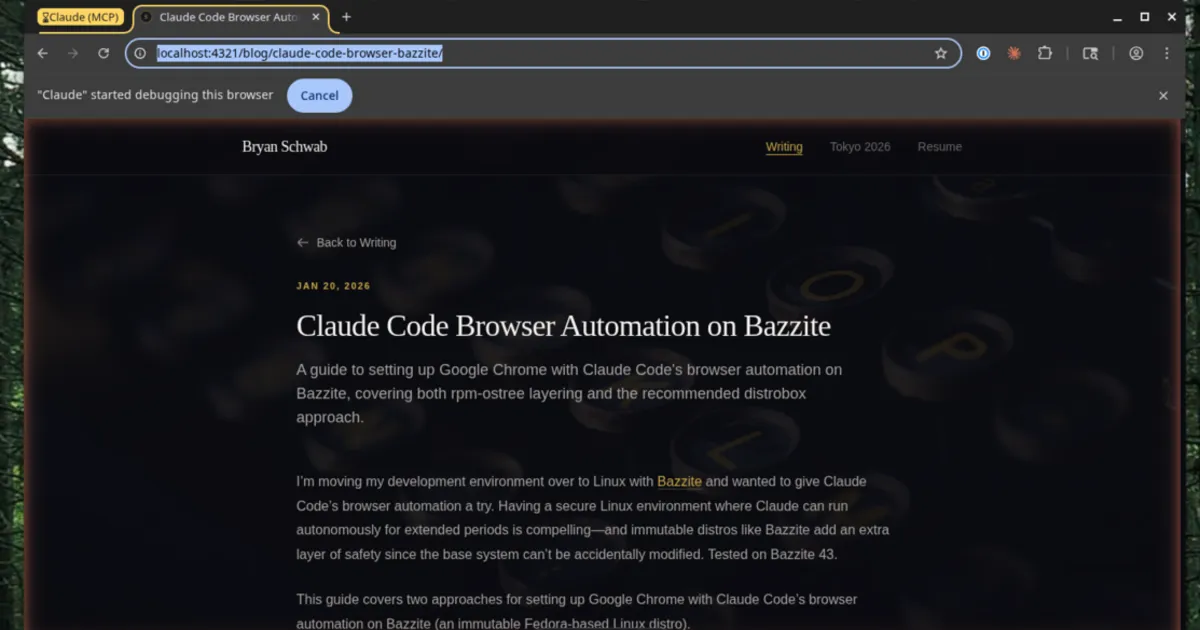
claude --chromeRun this from your project directory and Claude will be able to open tabs, navigate to your local dev server, and interact with your site. For example, if you’re running a dev server at localhost:4321, Claude can open it in a new tab and help you test or debug your UI.
Comparison
| Aspect | rpm-ostree | Distrobox |
|---|---|---|
| Binary location | /usr/lib/opt/google/chrome/chrome | Inside container |
| System updates | Can conflict with rebases | Isolated, no conflicts |
| Installation | rpm-ostree install + reboot | distrobox create + dnf install |
| Removal | rpm-ostree uninstall + reboot | distrobox rm |
| Desktop entry | System-wide | User-local |
| Profile data | Standard location | Standard location |
| Startup time | Immediate | Container startup overhead |
| Native messaging | Works out of the box | Requires volume mount for Homebrew |
Troubleshooting
Extension not connecting
If Claude Code reports “Browser extension is not connected”:
- Make sure Chrome is running
- Check that the extension is installed and enabled
- Try restarting Chrome
- If using distrobox Chrome, ensure you installed the extension in that instance
Native messaging not working (Homebrew + Distrobox)
If the extension is installed but Claude Code still can’t connect, the issue is likely native messaging. This is the most common problem when using distrobox with Homebrew-installed Claude Code.
Symptoms:
- Extension shows as connected in Chrome
- Claude Code reports “Browser extension is not connected”
- The extension can’t receive commands from Claude Code
Diagnosis:
# Check where Claude binary is located
cat ~/.claude/chrome/chrome-native-host

# Test if the path is accessible from inside distrobox
distrobox enter fedora-chrome -- ls -la /var/home/linuxbrew/.linuxbrew/Caskroom/claude-code/*/claude
If you get “No such file or directory,” the distrobox can’t see the Claude binary.
Fix:
Recreate the distrobox with the linuxbrew volume mount:
# Unexport Chrome first
distrobox enter fedora-chrome -- distrobox-export --app google-chrome-stable --delete

# Stop and remove the distrobox
podman stop fedora-chrome
distrobox rm fedora-chrome -f

# Recreate with the volume mount
distrobox create --name fedora-chrome \
  --image registry.fedoraproject.org/fedora-toolbox:41 \
  --volume /var/home/linuxbrew:/var/home/linuxbrew:ro

# Initialize, install Chrome, and export
distrobox enter fedora-chrome
# (inside distrobox)
cd /tmp
curl -LO https://dl.google.com/linux/direct/google-chrome-stable_current_x86_64.rpm
sudo dnf install -y ./google-chrome-stable_current_x86_64.rpm
distrobox-export --app google-chrome-stable
Alternative paths for other installation methods:
- Homebrew: Binary at
/var/home/linuxbrew/.linuxbrew/Caskroom/claude-code/<version>/claude— mount with--volume /var/home/linuxbrew:/var/home/linuxbrew:ro - npm global: Binary at
~/.npm-global/bin/claudeor/usr/local/bin/claude— usually no extra mount needed (home dir is shared) - Direct download: Path varies — mount the parent directory of wherever you installed Claude
Distrobox Chrome won’t start
# Check if container is running
podman ps

# Try restarting the container
podman restart fedora-chrome

# Check logs
podman logs fedora-chrome
Removing distrobox Chrome
# First unexport the app
distrobox enter fedora-chrome -- distrobox-export --app google-chrome-stable --delete

# Then remove the container
distrobox rm fedora-chrome
Managing Distroboxes
# List all distroboxes
distrobox list

# See what's installed in a distrobox
distrobox enter <name> -- dnf repoquery --userinstalled

# Remove a distrobox (also removes exported apps)
distrobox rm <name> --force
Why Reboot for rpm-ostree but Not Distrobox?
On immutable distros like Bazzite:
- The root filesystem is read-only and based on an OSTree image
rpm-ostreechanges create a new deployment (a new bootable image)- The running system keeps the old deployment until reboot
- Distrobox changes happen inside containers, which are immediate
This is the core tradeoff: rpm-ostree changes are atomic and reversible but require reboot. Distrobox changes are immediate but live in containers.
Recommendations
For developers on Bazzite using Claude Code:
- Use distrobox for Chrome and dev tools - it’s the “Bazzite way”
- One general-purpose distrobox is fine for most needs (e.g.,
fedora-dev) - Only create separate distroboxes if you have conflicting dependencies
- The slight startup overhead of distrobox is negligible for most workflows
- Keep the immutable base system clean - let Bazzite handle system updates without conflicts
Links
- Bazzite - Immutable Fedora-based Linux distro for gaming and development
- Claude Code - Anthropic’s CLI tool for AI-assisted development
- Claude in Chrome docs - Browser automation setup guide
- Distrobox - Run any Linux distribution inside your terminal